Table Settings
Peresvet ST tables can be tailored to a specific workflow: select a comfortable row height, hide secondary columns, and resize visible columns. Changes take effect immediately and are saved automatically for the current user.
Settings are available in the main sections, on the task page, and in tables inside dialogs—for example, when selecting files, PCAPs, CVEs, certificates, tunnels, or applications.
The Settings → Malware Package (PTI) → Import History table uses a fixed layout without personal settings.
Opening Table Settings
- Find the gear button in the toolbar above the table. It is to the left of the other action buttons.
- Hover over it to display the Table Settings tooltip.
- Click the button to open the panel.
Settings take effect immediately. There is no separate Apply button. To close the panel, click the gear again, press Esc, or click outside the panel.
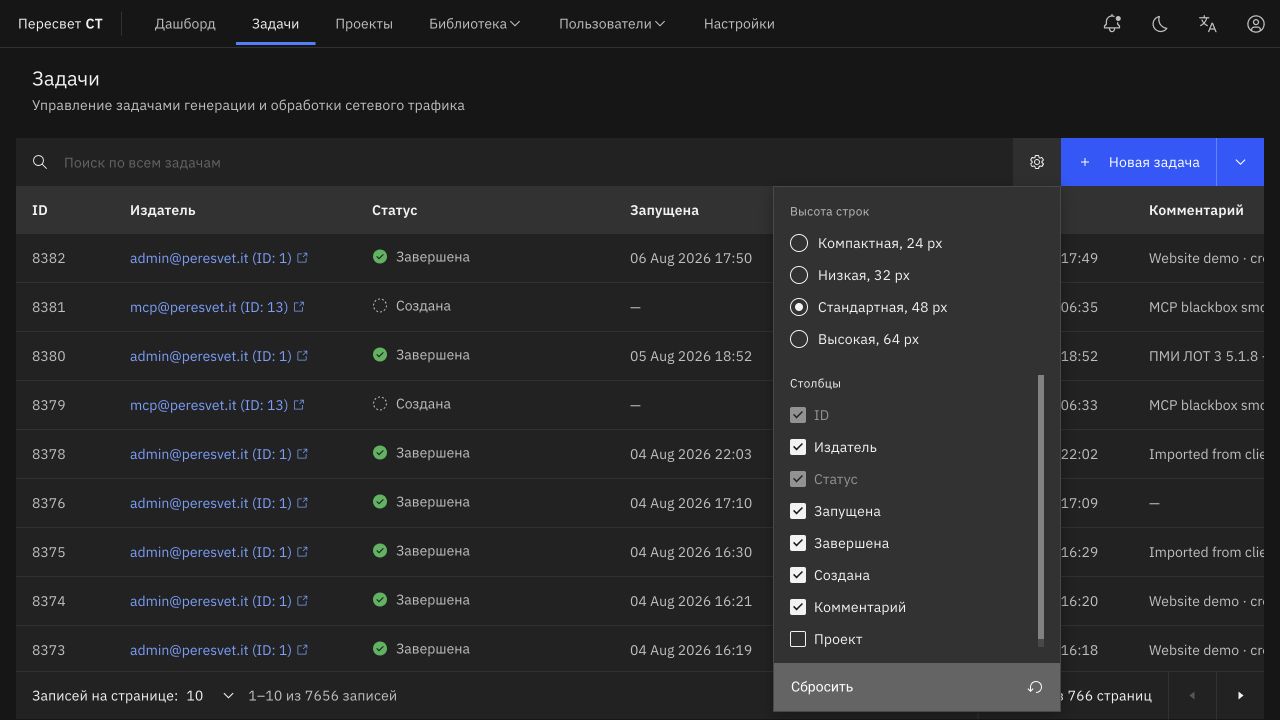
Figure 1 — Table settings panel in the task list
Row Height
The Row Height section offers four modes:
| Mode | Height | Best used for |
|---|---|---|
| Compact | 24 px | Viewing the maximum number of records without scrolling |
| Low | 32 px | A dense working list with clearly readable rows |
| Standard | 48 px | General-purpose default |
| High | 64 px | Larger elements and improved visual clarity |
The selected height applies to every row in the current table, including the loading state. It does not change the number of records per page.
Selecting Visible Columns
In Columns, each checkbox controls one column:
- checked — the column is visible;
- cleared — the column is hidden;
- disabled — the column is required and cannot be hidden.
The list can be scrolled. A small, permanently visible scroll bar on the right indicates that more columns may be available below.
Hiding a column affects only its display. The data is not deleted and remains stored in the system. To restore a column at any time, select its checkbox again.
Select Compact, 24 px, hide Publisher, and keep Status, Started, Completed, and Comment. This layout is convenient for an operator who monitors many runs and does not use task-author information in daily work.
Resizing Columns
Resize a visible column directly in the table header:
- Move the pointer to the right edge of the column header.
- When the pointer changes to a horizontal resize cursor, press the left mouse button.
- Keep the button pressed and drag the edge left or right.
- Release the button. The new width is saved automatically.

Figure 2 — Drag handle for resizing columns
Dragging changes only the two adjacent visible columns: one becomes wider and the other narrower. Other columns do not move, and the overall table width remains unchanged. Movement in a direction stops when either column reaches its allowed minimum or maximum width.
Resize the last visible column using the edge to its left. Double-clicking an edge restores automatic width for the column to the left of that edge.
If saved widths do not fit in a narrow window or dialog, a horizontal scroll bar appears at the bottom of the table. Narrow adjacent columns or click Reset to restore the original sizes.
Resizing with the Keyboard
Column boundaries can receive focus through Tab navigation. When a boundary has focus:
←and→change the width by 8 px;Shift+←andShift+→change it by 32 px.
A white line indicates keyboard focus. It is not displayed during ordinary mouse hover; the cursor shape indicates that the boundary can be dragged.
How Settings Are Saved
Personalization follows the rule one profile per table, per user.
| Situation | Result |
|---|---|
| A user configures the Agents table | The settings apply only to that account and that table |
| Another user opens the same table | They see their own settings or the defaults |
| The user refreshes the page or signs in again | The column selection, row height, and widths are restored |
| The user configures a table in a dialog | The settings apply only to that selection table |
| A new column enabled by default is added to the product | It appears automatically even if the table was customized earlier |
Settings are stored on the server and bound to the account, not only to a particular browser.
One Profile for Both Task Lists
The main Tasks section and the task table inside a project share one profile. For example, hiding Publisher in the main list also hides it within a project. A change made inside a project appears in the main list in the same way.
All other tables have separate, independent profiles.
Resetting Settings
The Reset button at the bottom of the panel fully restores the current table's initial layout:
- restores the default column set;
- restores the standard row height;
- removes every saved column width, including resizing performed with the mouse or keyboard.
Reset affects only the current table and current user. It does not change data, sorting, the search query, filters, or the number of records per page.
To undo resizing for one column, double-click its right edge. Use Reset when you want to restore the entire table at once.
Configuration Examples
Monitoring Many Tasks
Select compact rows and retain the identifier, status, start time, and completion time. Widen Comment by moving its left edge. More runs then fit on screen while the scenario description remains readable.
Preparing Library Objects
In file, PCAP, certificate, or network tables, keep only the fields required for the current operation. Settings for a main library table do not affect its selection table in a dialog, so each can be optimized for a different purpose.
Analyzing a Task
On the Data Plane, Control Plane, and Access Groups tabs, widen the column that contains a name or configuration and narrow short numeric fields. Adjacent resizing keeps the other columns in place and prevents the table from jumping.
Frequently Asked Questions
Why Is a Column Checkbox Disabled?
It is a required column. The column is necessary to identify or understand a record unambiguously and is therefore always visible.
Why Does One Table Look Different from Another?
Each table has its own profile. Settings are not shared between tables, except between the main task list and the task list inside a project.
Do Settings Change the Data or Row Actions?
No. Personalization changes only the table presentation. Records, search, sorting, filters, and available actions remain unchanged.
How Do I Restore the Original Layout?
Open Table Settings and click Reset. The column selection, row height, and all saved widths are restored.