Report Export and Task Import
The task page's Parameters menu (⋮) offers two different types of export:
- a task results report (PDF/CSV/HTML) for sharing results;
- a task configuration (archive with dependencies or JSON) for moving or copying a scenario between installations.
Python-based execution automation is described separately under Automation.
Exporting Reports
Task reports are available from the task action menu (⋮):
| UI action | Format | Purpose |
|---|---|---|
| Export Report as PDF | Printable version: loads Grafana panels and then opens the browser print workflow | |
| Export Report as CSV | CSV | Tabular report named system-trace-task-<ID>-report-<date>.csv containing the task, plugins, metric scope, and CP/Access data |
| Export Report as HTML | HTML | HTML file with embedded dashboard iframes for viewing without the UI |
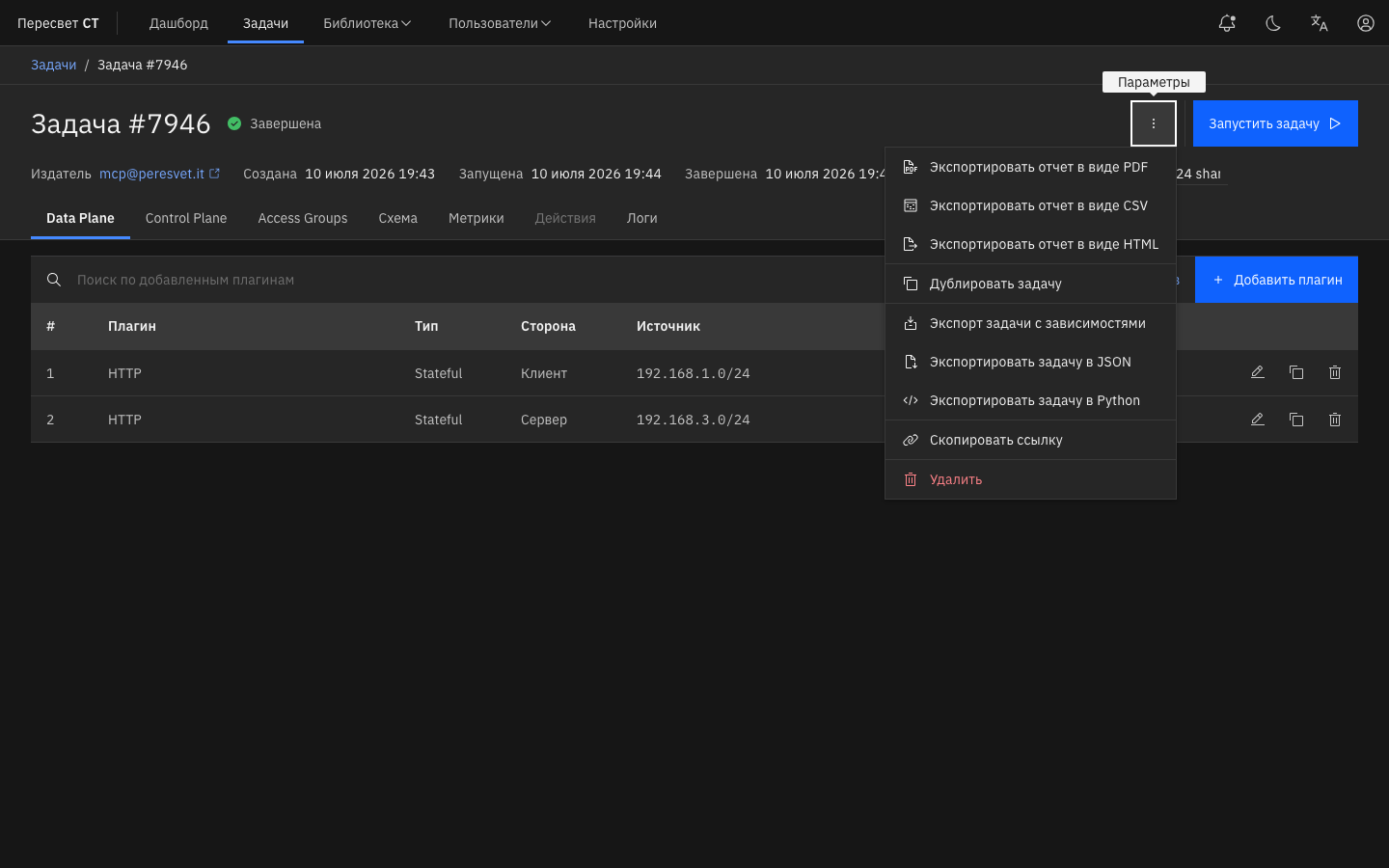
Figure 28 — Report export commands in the task menu
During PDF export, the interface displays progress such as “Preparing printable version…” and “Loading chart N of M.” If the panels fail to load, it displays PDF Report Was Not Generated. A button for exporting the current dashboard as PDF may also appear below the graphs on the Metrics tab. Use it for a single-dashboard snapshot; the complete ⋮ menu provides PDF/CSV/HTML for the entire task.
For guidance on reading charts and a list of dashboards, see Metrics and Dashboards.
Exporting and Importing Tasks
Export a task to move it to another installation or create a copy on the same one. Select the format on the task page under Parameters.
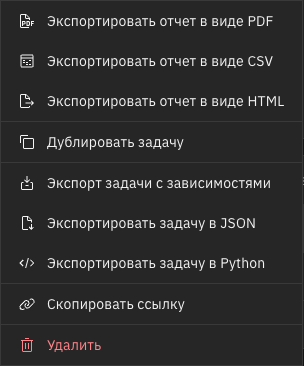
Task Parameters menu with export options
| Option | Downloaded content | When to use it |
|---|---|---|
| Export Task with Dependencies | Encrypted .pa-task-export archive containing the task configuration and transferable library objects | Move a task to another installation together with networks, MAC objects, certificates, tunnels, CVE signatures, Dynamic Applications, and descriptions of referenced files |
| Export Task to JSON | One JSON file containing the task configuration | Quickly copy to an installation that already contains the required networks, files, applications, and other library objects |
| Export Task to Python | ZIP archive containing the configuration and a Python REST API client | Automate task execution; see Automation |
Exporting a Task to JSON
JSON export stores only the task configuration. It is suitable for quick copies on the same installation or between installations with identically prepared libraries. Network objects, certificates, files, Dynamic Applications, CVE signatures, agents, and PCI interfaces are not embedded as independent library objects.
When a JSON file is imported, Peresvet ST creates a new task from its configuration. If the configuration references objects that do not exist on the target installation, review and edit the task before starting it.
Exporting a Task with Dependencies
The .pa-task-export format moves a task between installations. Before downloading, the controller builds an export plan and shows the dependencies found in the task:
- networks and their parameters, including the MAC policy and manual MAC exceptions;
- library MAC addresses;
- certificates and private keys;
- tunnels;
- CVE signatures when the task uses CVE Replay or related files;
- Dynamic Applications;
- metadata for PCAP, HAR, user, and malware files;
- descriptions of the agents used by the task.
The archive is encrypted and named peresvet-st-task-<ID>.pa-task-export. It contains the task configuration, export manifest, and JSON descriptions of transferable objects. Users do not need to extract or modify it manually.
The export dialog displays dependency counts for networks, MAC addresses, certificates, tunnels, CVEs, applications, files, and agents. If a dependency needs attention, Peresvet ST displays a warning before downloading the archive.
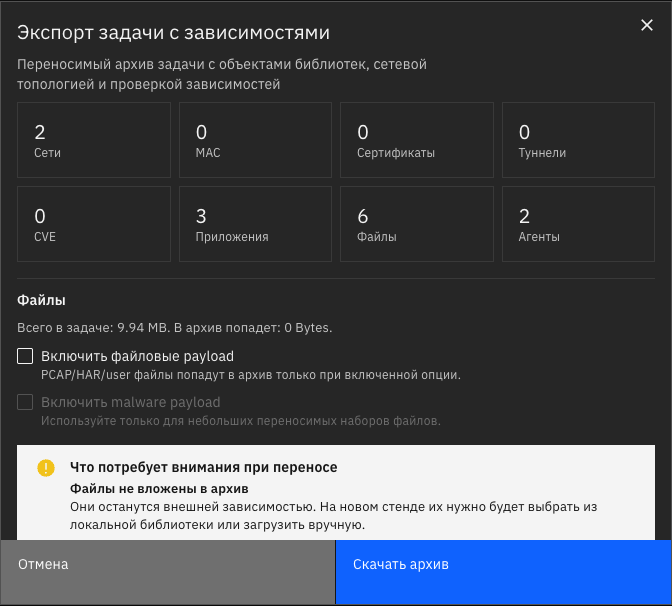
Export dialog for a transferable .pa-task-export archive
File payloads are not embedded by default. This prevents accidental downloads of very large datasets, such as tasks containing large PCAP/HAR files or many malware files. To transfer the files themselves, enable Include File Payloads. Malware payload is controlled by a separate option and is intended only for small transferable sets. If payloads are not included, the files remain external dependencies and must be uploaded in advance or selected from the target installation's library.
Agents and PCI interfaces are not physically transferred. Their identifiers are installation-specific, so the archive contains only descriptions of the source agents and interfaces. When inspecting the archive on another installation, map these resources to local agents and ports.
Importing a Task
- Open Tasks.
- Click the arrow to the right of New Task. The button itself opens the new-task builder; the arrow opens the additional-action menu.
- Select Import Tasks.
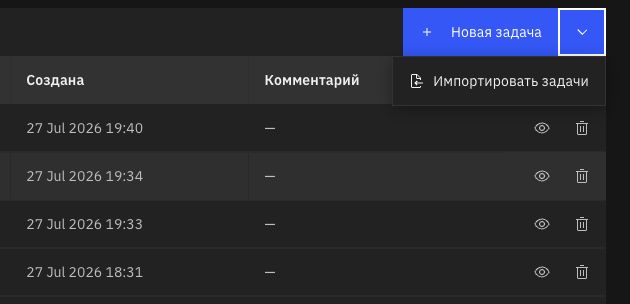
Opening the task import dialog
In the dialog:
- Drag one or more
.jsonor.pa-task-exportfiles into the upload area, or click the area and select files. - Wait for validation to finish. For
.pa-task-export, Peresvet ST also validates transferable dependencies. - For rows with Selection Required, select a local agent or PCI interface on the target installation.
- Click Import for
.pa-task-exportor Create Tasks for JSON files.
After creation, open the task and verify its agent, interface, network, and file bindings before starting it.
Inspecting a Transferable Archive
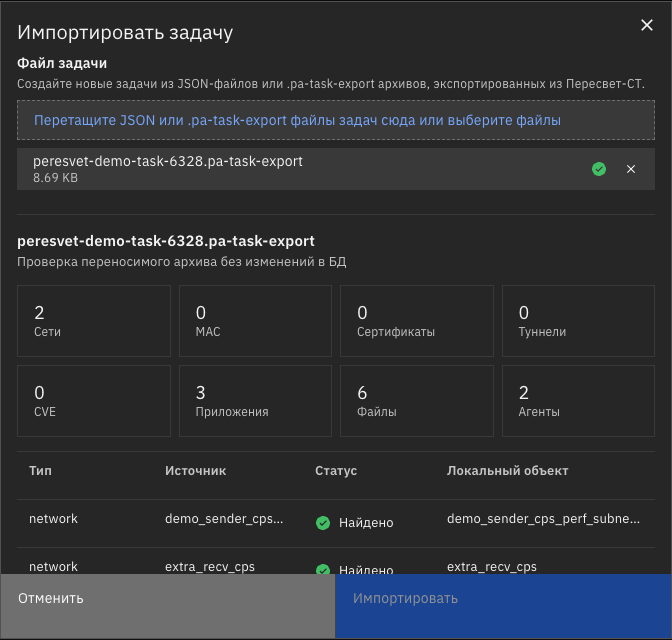
Inspecting a transferable archive before task import
For .pa-task-export, the controller first performs a safe inspection without changing the database. Peresvet ST reads the archive, compares its dependencies with local libraries, and displays a status table:
| Status | Meaning | User action |
|---|---|---|
| Found | The target installation already has an object with the same fingerprint or identical content | Do not create the object again |
| Will Be Created | The object does not exist on the installation, but the archive contains enough data to create it | Review the object's name and contents before import |
| Selection Required | The object is installation-specific; for example, a source agent or PCI interface cannot be transferred automatically | Select a local agent or interface |
| No Payload | The archive references a file, but does not contain its payload, and no matching local file was found | Upload the file to the target installation or export again with payloads included |
| Conflict | An object with the same user-facing identifier but different content exists on the installation | Review the local object and decide which version must be used |
When several archives are selected, each file is inspected in its own block. This supports bulk transfer while showing the contents of every task, shared dependencies, and resources requiring selection. Identical objects do not have to be moved repeatedly: depending on the object type, inspection matches them to the local library by content, name, identifier, or fingerprint.
After validation and mapping of required resources, Peresvet ST creates the missing transferable dependencies and the new task. Agents and PCI interfaces are never created automatically; the task is bound to the local resources selected in the import dialog.