Traffic Capture
The Traffic Capture section records a task's inbound and outbound traffic in PCAP format and downloads captures from agents, both while a task is running and after it completes.
Captured traffic is useful for inspecting packet contents, protocol fields, exchange directions, and actual scenario behavior in Wireshark or another analyzer. Use task metrics and dashboards to review total traffic volume, rate, loss, and test duration; these represent all traffic. A capture file stores a size-limited packet window for content analysis.
How Recording Works
Recording is enabled in the task settings and applies to all participating agents at once. Each agent writes traffic from its test interfaces locally and sends an assembled PCAP file to the controller:
- automatically when the task completes or is stopped;
- manually when you click Request Capture for a particular agent while the task is still running; this action is in the Packet Capture dialog.
Each agent capture file contains both transmitted (TX) and received (RX) packets. TX and RX share the size limit. When ARP recording is enabled, ARP packets also consume part of the limit; when disabled, ARP packets are omitted from the PCAP.
The limit applies per agent. In a two-agent task, a value of 200 MB permits a final file of up to 200 MB from each agent, not 200 MB for the entire task. The limit includes packet data and 16-byte PCAP record headers for every packet, so the file grows slightly faster than the sum of frame bytes.
The beginning of each packet, up to 1,520 bytes, is stored. This is sufficient to inspect headers and most of the payload in ordinary Ethernet frames. Larger frames are truncated in the capture, but task byte counters still report the full volume of transmitted and received traffic.
Packet Rotation: Sliding Window
Recording does not stop when the limit is reached. While a task runs, the agent continuously records packets and maintains a sliding window of recent traffic on disk. New packets gradually replace old ones so that local storage usage does not grow indefinitely.
The algorithm works as follows:
-
Continuous recording. Each agent worker writes packets to its own temporary PCAP fragments. Each fragment contains the packets that actually passed through that worker, in both directions.
-
Two slots per worker. Each worker has a ring of two files. It fills the first slot, then switches to the second when the first reaches its share of the configured limit. When the second fills, recording returns to the first and overwrites it. The two most recent fragments per worker therefore remain on disk while older data is removed.
-
Shared agent budget. The UI limit is divided among all recording workers on that agent. The total size of live fragments on disk remains around twice the limit (two slots), plus space for the assembled output file. The task continues to run and metrics continue to accumulate while the capture window simply moves forward in time.
-
File assembly for download. When you request a capture or the task completes, the agent:
- collects all current fragments;
- merges the packets into one PCAP;
- orders them by timestamp;
- if their total size exceeds the limit, retains the most recent packets that fit.
The downloaded capture is therefore a time-ordered window containing the agent's most recent packets within the selected size.
In practical terms:
- if the limit is larger than the task's total traffic, the file contains almost the entire exchange from beginning to end;
- if traffic exceeds the limit, the file contains the tail of the task—the most recent period—because earlier packets have been replaced;
- if a long test's capture contains only the last 20–30 seconds, this is expected sliding-window behavior under a small limit or high rate, not evidence that the task ended early.
Requesting a capture while the task is running does not interrupt recording. The agent assembles a snapshot of the current window and continues to write. A later request produces a newer window.
Choosing a PCAP Size
A small limit is convenient for a quick check because the file is assembled and downloaded faster. For a long or high-rate task, allow enough capacity on each agent; otherwise, the file contains only the tail of the test.
Approximate per-agent estimate when the entire expected exchange must fit:
required PCAP size ≈ TX bytes + RX bytes + 16 bytes × (TX packets + RX packets)
Estimate TX/RX from the expected rate, duration, and packet count. If hundreds of megabytes are expected in both directions over 60 seconds and the limit is 200 MB, the downloaded file will probably contain only the final part of the test. Increase the limit, reduce the duration or rate, or request captures several times while the task runs to preserve different portions of the run.
Enabling Traffic Capture
Enable traffic capture before starting the task.
-
Connect to the Peresvet ST web interface.
-
Open Tasks.
-
Select the task whose traffic you want to record.
-
Open the settings by clicking Packet Capture.
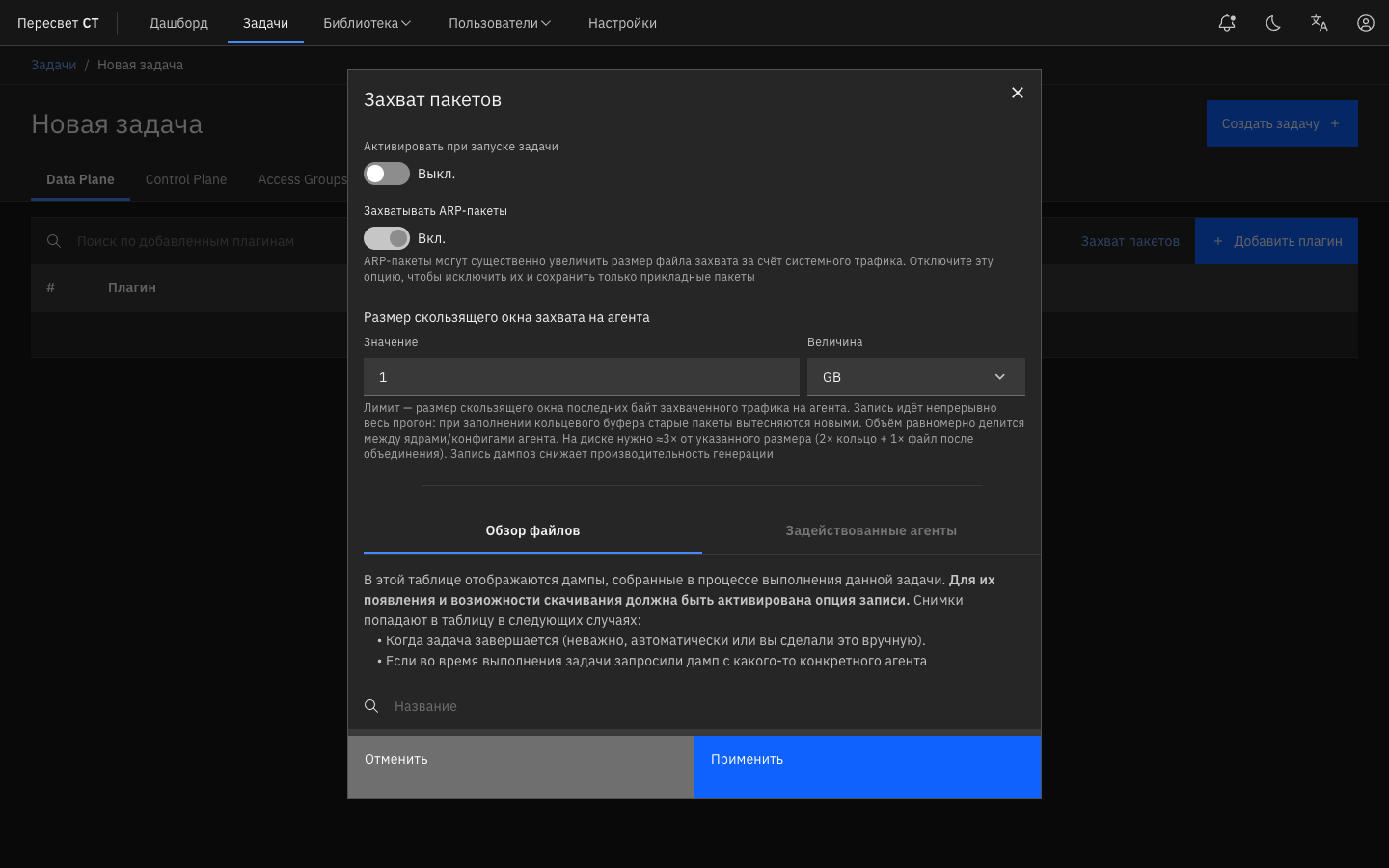
Figure 27 — Packet Capture button and PCAP settings dialog
-
Enable Activate at Task Start.
-
Enter a Value. This is the final PCAP file limit for one agent.
-
Select a unit:
- Bytes;
- KB — kilobytes;
- MB — megabytes;
- GB — gigabytes.
-
Enable or disable ARP recording as required.
-
Return to the task and start it.
-
Open Packet Capture again after the task starts.
-
Open Browse Files. The table lists the captures collected for this task.
-
Click Download next to the required entry and wait for the PCAP file to download.
Files appear in the table in two cases:
- the task completed automatically or was stopped by the user, and the agent assembled and uploaded its final capture;
- you requested a capture from a particular agent while the task was still running.
If the expected file has not appeared, click Refresh File List. Assembling and uploading a large capture from the agent to the controller can take time; upload progress is shown in the interface.
Downloading a Capture While a Task Is Running
While the task runs, request a current capture snapshot from any participating agent at any time. The task does not stop: the agent assembles the current sliding packet window into one PCAP and sends it to the controller. Recording continues on the agent, so a later request contains more recent packets.
-
Connect to the Peresvet ST web interface.
-
Open Tasks.
-
Select the task.
-
Open Packet Capture and make sure that traffic capture is enabled.
-
Start the task if it is not already running.
-
Open Packet Capture again.
-
Select Participating Agents.
-
Click Request Capture in the required agent's row.
-
Open Browse Files.
-
Click Refresh File List if the file is not yet displayed.
-
Click Download next to the new entry and wait for the PCAP file to download.
Downloading a Capture After Task Completion
When a task completes normally or is stopped manually, each agent with capture enabled automatically assembles the final PCAP from its current window and sends it to the controller. The file is then available under Browse Files in the same Packet Capture dialog. Open the list, click Refresh File List if required, and then click Download.
Capture preparation and upload take time. The higher the task load and the larger the limit, the longer the file takes to appear. While a capture from an agent is being assembled or uploaded, another request to the same agent is unavailable until the current transfer completes.