Dynamic Applications
How Dynamic Applications work
A Dynamic Application is a repeatable application scenario created from a PCAP file. Use it when sending recorded packets is not enough and a real client-server exchange must become a controllable load profile: select the relevant sessions, preserve the exchange logic, vary user-specific values, and run the same scenario with different user counts, rates, and parameters.
Unlike PCAP Replay, a Dynamic Application operates as an L7 scenario. The system analyzes the capture, identifies TCP/UDP sessions and the client side, stores the selected exchange steps, and lets you parameterize application data such as usernames, tokens, identifiers, URLs, order numbers, cookies, and other values that must vary between users or runs.
A Dynamic Application stores the selected sessions, exchange direction, request and response sequence, timing, parameters, and defaults. At runtime, the client agent opens connections according to the configured users and CPS and replays the client side of the scenario, while the server agent responds with the stored server side. A scenario can run once or repeat until the task stops; its rate can follow the original PCAP timing or be configured manually.
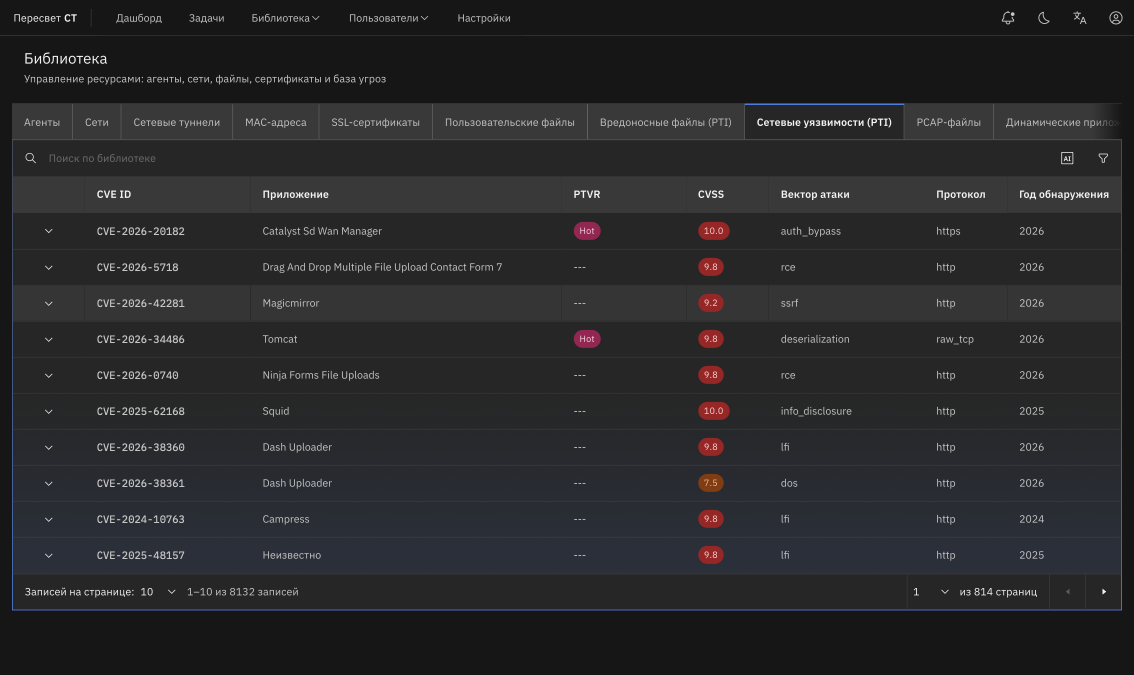
Figure 18 — Dynamic Applications library
Use Dynamic Applications to:
- replay a user scenario captured from real traffic;
- test a device with realistic L7 load instead of synthetic HTTP traffic or a simple packet stream;
- run the same scenario with different user counts and CPS values;
- change values inside requests or responses without recording another PCAP;
- test stateful-session handling through a device placed between two Peresvet ST agents.
If you only need to send an entire capture or selected sessions unchanged, PCAP Replay is generally sufficient. Use a Dynamic Application when you need to control application values and scale the user scenario.
Preparation and execution
Preparing and using a Dynamic Application involves two stages:
- Obtain the application. Import a ready-made
.paarchive or create an application from a PCAP by selecting the client side, sessions, and parameters. - Use the application in a task. Add the Dynamic Applications plugin, select one or more library applications, and configure users, CPS, rate, timeout, playback mode, and parameter values.
This workflow separates scenario preparation from load execution. You can reuse one application in different tasks and test environments with different parameter values.
Ready-made Dynamic Applications
The Peresvet ST appliance ships with the current set of ready-made Dynamic Applications available on its release date. The catalog is updated weekly. New versions are available on Peresvet Portal under Resources → Dynamic Applications. Download availability is controlled by your group's portal permissions.
To add an update to Peresvet ST:
- Download one or more
.paapplications from the portal. - Open Library → Dynamic Applications.
- Open the menu next to Create application, select Import application, and upload the archives.
Each .pa archive contains the application configuration and source PCAP. For some TLS applications, the portal displays a separate Download the TLS decryption key and certificate icon to the left of the regular download action. It downloads a ZIP containing the certificate and private key for encrypted-traffic analysis. If the icon is absent, no additional TLS materials are supplied for that application.
Creating your own Dynamic Application
If the ready-made catalog does not contain the required scenario, create an application from your own traffic capture. Prepare a focused PCAP, then use the creation wizard under Library → Dynamic Applications.
Preparing the PCAP
The quality of the source PCAP determines whether the Dynamic Application will run reliably. Prepare the capture before uploading it:
- Capture an exchange whose client and server sides are unambiguous.
- Keep only the required scenario or the smallest useful session set.
- Ensure that selected sessions carry payload in both directions: client → server and server → client.
- Use IPv4 TCP/UDP sessions with valid ports.
- Save the file in classic PCAP format, not PCAPNG.
- Dynamic Applications require an Ethernet PCAP (
linktype=1,DLT_EN10MB).
A Raw IP PCAP (linktype=101, DLT_RAW) may be recognized while you inspect sessions in the library, but it cannot be used to run the Dynamic Applications plugin. The task is rejected before startup with an unsupported linktype 101 error.
Use PCAP files with Ethernet headers (linktype=1) for Dynamic Applications. If the source capture has no L2 header, capture the traffic again at a point where Ethernet is available or prepare a valid Ethernet PCAP before uploading it to the library.
Creating an application
The Dynamic Application wizard contains these steps:
- Upload PCAP — select the file and enter an application name, description, and tags.
- Select client — select the IP address of the side that initiates connections.
- Sessions — inspect the detected TCP/UDP sessions and assign clear names.
- Parameterization — select variable regions in the hex view or search by text, hex, or regex.
- Review and save — verify sessions and parameters.
- Defaults — configure users, rate, timeout, and parameter behavior.
- Save — publish the application to the library.
When selecting the client, specify the IP address of the side that initiates the user action. This selection determines session direction: the client replays requests and the server responds according to the stored scenario. If you select the server as the client, the scenario may start in the wrong direction or fail to find the expected sessions.
At the session step, select only TCP/UDP sessions that belong to the required user action. Do not include background connections, service telemetry, DNS queries, or unrelated keep-alive exchanges unless the test requires them.
Every selected session must contain payload in both directions. An application is not suitable for stateful replay if the PCAP contains only a request without a response, or only a response without a request.
Parameters let you vary values within the application exchange without modifying the PCAP. For example, you can select a username, order number, device ID, authorization token, URL path, cookie value, or JSON/XML field. Select a parameter in the packet view or find it by string, hex value, or regular expression.
Use descriptive parameter names. Operators see these names in the task, so username, order_id, and csrf_token are more useful than param1.
Before saving, verify the client IP, selected session list, exchange direction, parameter presence and names, description, and tags. Removing unrelated sessions and renaming parameters at this stage is easier than diagnosing an incorrect task load later.
If the application cannot be saved, review the validation errors. Common causes include an incorrect client IP, an empty session list, invalid IPv4 metadata, or missing payload in one direction.
Using an application in a task
To run an application:
- Create a task.
- Add the client and server Dynamic Applications plugins, or use an existing template.
- Select agents, interfaces, sources, and targets.
- Select one or more applications from the library.
- Configure users, CPS, rate, timeout, and playback mode.
- Enter parameter values if the application defines parameters.
- Start the task and monitor metrics on the Applications dashboard.
When multiple applications are selected, the load is distributed by weight or percentage. This supports mixed profiles in which some users run one scenario and the remaining users run another.
Table 184 — Dynamic Application task settings
| Name | Description | Value |
|---|---|---|
| Applications | One or more library applications | Select applications in the dialog |
| Playback mode | Repeat the scenario or run one pass | One pass runs the user sessions once; loop mode repeats the scenario until the task stops |
| Distribution mode | How load is divided among applications | Weight or percentage |
| User count | Total number of concurrent users | Distributed among selected applications |
| CPS | User-session start rate | Set the aggregate value for the scenario |
| Timeout | Maximum response wait time | Default: 30 seconds |
| Rate mode | Original timing or a manually configured rate | Select according to the test objective |
| Target rate | Aggregate traffic rate | bps, Kbps, Mbps, or Gbps |
| Follow timing | Preserve delays from the source PCAP | Enable for modes in which real exchange timing matters |
| Replace ports | Replace L4 source/destination ports | Use to move the scenario to another test environment |
| Client/server parameters | Values selected when the application was created | Static, list, random, increment, or extracted from a response |
How the load is calculated
In a Dynamic Application, a user, a session, and a connection are different entities. One user represents one independent copy of the application scenario, but the scenario may contain multiple TCP and UDP sessions. One user therefore does not equal one connection.
For example, if an application contains five selected sessions and is assigned 100 users, the calculated profile contains 500 sessions. Depending on the original scenario sequence and timing, some may run concurrently and others sequentially. Use Active Sessions on the Applications dashboard for the actual concurrent connection count.
Table 185 — Key load-profile metrics
| Metric | Meaning | How to use it |
|---|---|---|
| Users | Number of independent copies of the selected application scenarios | Determines the scale of user activity, but does not equal the connection count |
| Scenario sessions | TCP and UDP sessions selected when the application was created | One user may run several sessions sequentially or concurrently |
| Calculated sessions | Sum of application users × sessions in application | Displayed while distributing load among applications and defines the profile size |
| CPS | New sessions opened per second | Determines how quickly the profile reaches steady-state load and how often new connection state is created |
| Active Users | Users for which at least one session has been established | Shows whether user load has reached the configured level |
| Active Sessions (CC) | Connections that are active at the current moment | Use to measure actual connection concurrency during the test |
| Target rate | Aggregate configured traffic rate for the selected application mix | Does not fully describe load without users, CPS, CC, and application composition |
| Flows Completed | Scenario flows that completed the expected exchange | Compare with started flows and test duration |
| Flows Failed | Flows that did not complete the expected exchange | Analyze by time, side, and failure cause; it should remain zero for an error-free profile |
After steady state is reached, concurrent connections can be estimated as CC ≈ CPS × average session lifetime. For Dynamic Applications, this is only an approximation: the result also depends on the number and sequence of sessions within each application, original or scaled timing, server responses, timeouts, and scenario looping. Active Sessions is the authoritative measurement.
When several applications are selected, total users, CPS, and target rate are distributed by weight or percentage. Applications may differ in session count, data volume, and exchange duration. An equal share of users therefore does not necessarily create an equal share of connections, packets, or traffic.
In manual-rate mode, the target rate is the steady-state bandwidth of the profile, not an instantaneous startup jump. As users and their sessions become active, the platform increases the available application bandwidth proportionally. Once the configured profile is active, the full target rate is allowed and the system stabilizes it against measured traffic.
This prevents the first few connections from receiving the entire task bandwidth and avoids an artificial startup burst against the DUT. CC = CPS also does not mean an immediate jump: CPS is a session-opening rate per second, while CC is the number of simultaneously active connections. Nominally, such a profile may be populated in about one second, but TCP handshakes, application-session readiness, scenario timing, and server responses can extend the time required to reach the target rate.
Two tests with a 10 Gbps target can impose fundamentally different loads on the DUT. With too little CC, each connection must carry a large share of the aggregate rate, and the selected scenario or network path may be unable to reach the target. A large number of short-lived connections at high CPS additionally stresses state creation and deletion, flow distribution, processing queues, and application inspection. Between these extremes, there may be an operating range that reaches the target rate without errors.
Report throughput together with application composition, user count, CPS, actual CC, and the rate actually achieved. 10 Gbps, 200 CC describes a different profile from 10 Gbps, 1600 CC, even if the average rate is identical. These measurements make the system's operating range reproducible in terms of both throughput and concurrent connections.
Evaluating results
At the beginning of a test, the system ramps from zero load to the configured users, CPS, CC, and rate. This ramp-up period may behave differently from steady state: errors may occur only during rapid growth, continue after the target profile is reached, or not occur at all. For accurate analysis:
- compare tests that use the same applications, users, CPS, rate, duration, and timing mode;
- evaluate the ramp-up period separately from the steady-state interval;
- review actual rate, Active Users, Active Sessions, Flows Completed, and Flows Failed;
- do not treat later stabilization as negating errors that occurred at startup;
- analyze client and server sides separately, because related symptoms of one failed exchange may be recorded on both sides;
- when locating a limit, change one setting per run, such as CPS or users, while keeping all other conditions constant.
This metric set is more informative than a single throughput value. It shows not only how much data was transferred, but also the connection profile under which the rate was achieved, how many flows completed successfully, and where in the load progression errors appeared.
For Dynamic Applications, One pass means that user sessions run the scenario once and then finish. When Follow timing is enabled, delays from the source PCAP are preserved, but one pass has a maximum window of 86400 seconds (24 hours). If the source capture contains later packets or long pauses beyond this window, those packets do not appear in the traffic captured by the agents. For such scenarios, shorten the capture, disable Follow timing, or use loop mode.
Table 186 — Dynamic Application parameter value sources
| Source | Description | Example |
|---|---|---|
| Static | One value for all sessions | One username, domain, or token |
| List | Values used in round-robin order | Set of users or URLs |
| Random | Random integer within a range | Order number or customer ID |
| Increment | Prefix + initial value + step | user_1, user_2, user_3 |
| Extract | Value captured from a server response and inserted into subsequent requests | Session ID, CSRF token, or cookie |
Parameterization must preserve the protocol's semantics. If a replacement prevents the server side from recognizing the next scenario step, the session may time out.
Limitations and common causes of errors
PCAP format
- Classic PCAP is supported. Convert PCAPNG files to PCAP before use.
- Dynamic Applications require Ethernet
linktype=1at runtime. - Raw IP
linktype=101is not supported at runtime. - Selected sessions must provide IPv4 TCP/UDP metadata.
Sessions and payload
- Select at least one session.
- Every selected session must exist in the PCAP for the selected client IP.
- Every selected session must carry payload in both the client → server and server → client directions.
- Unidirectional sessions, empty responses, and service TCP connections without application data are not suitable.
Client direction
- The client IP must identify the side that initiates the user action.
- If the wrong client is selected, the system may not find the sessions or may replay the exchange in the wrong direction.
- In a two-agent scenario, client and server plugins must use matching networks and interfaces.
Rate and duration
- Original-timing mode preserves delays from the capture. Long PCAP pauses are carried into the scenario.
- In manual-rate mode, the platform scales user and session startup according to the configured values.
- In One pass mode, user sessions run once and finish.
- For long captures with large pauses, shorten the PCAP or use loop mode.
Parameters
- Do not change bytes that break the protocol format, field length, or application control structure unless the scenario explicitly supports the change.
- Verify that the parameter occurs in the intended step rather than in a similar fragment of another packet.
- For tokens and cookies issued by the server, extract the value from the response instead of using a static value.
Recommendations
- Keep the PCAP short and focused: one user scenario is better than a long capture with background traffic.
- Save and run the application without parameters first to verify basic replay.
- Add parameters gradually and test the scenario after each significant change.
- Use clear session and parameter names; they appear in the task and make troubleshooting easier.
- Capture traffic to PCAP on the agents and compare the actual exchange with the source PCAP during troubleshooting.
- If validation prevents the task from starting, correct the application or PCAP instead of attempting to run partially valid sessions.
Before starting a task, verify that the application is saved in the library without errors, the PCAP uses Ethernet linktype=1, the correct client IP is selected, selected sessions carry payload in both directions, values are supplied for all required parameters, agents are online and synchronized, and the client and server networks match the selected test environment.